Guide
Draw your racks
A rack can have several zones, each with its own settings. These tools work when you create the cellar and when you redesign it.
A rack with several zones
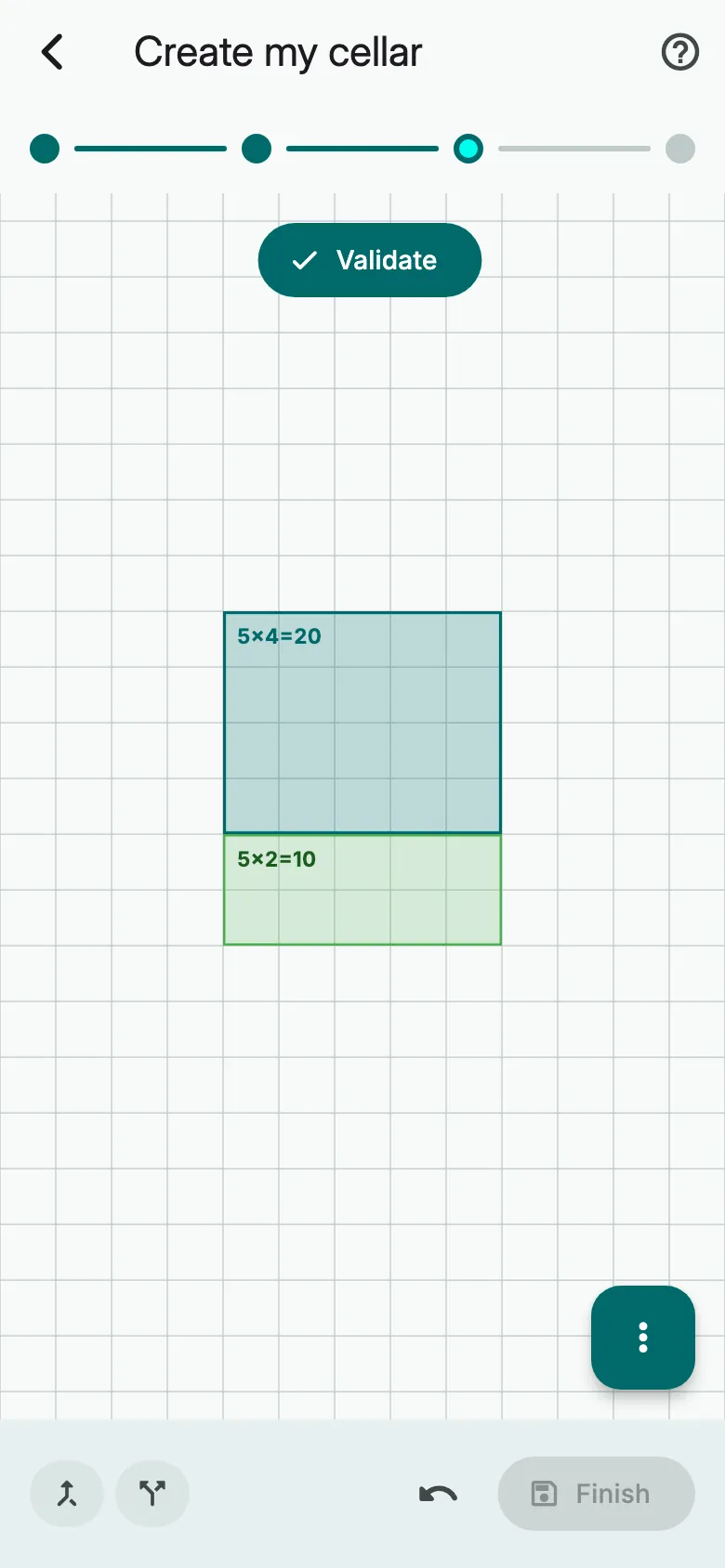
While the rack is in progress, long-press an empty slot right next to it, then slide: the new zone joins the same rack.
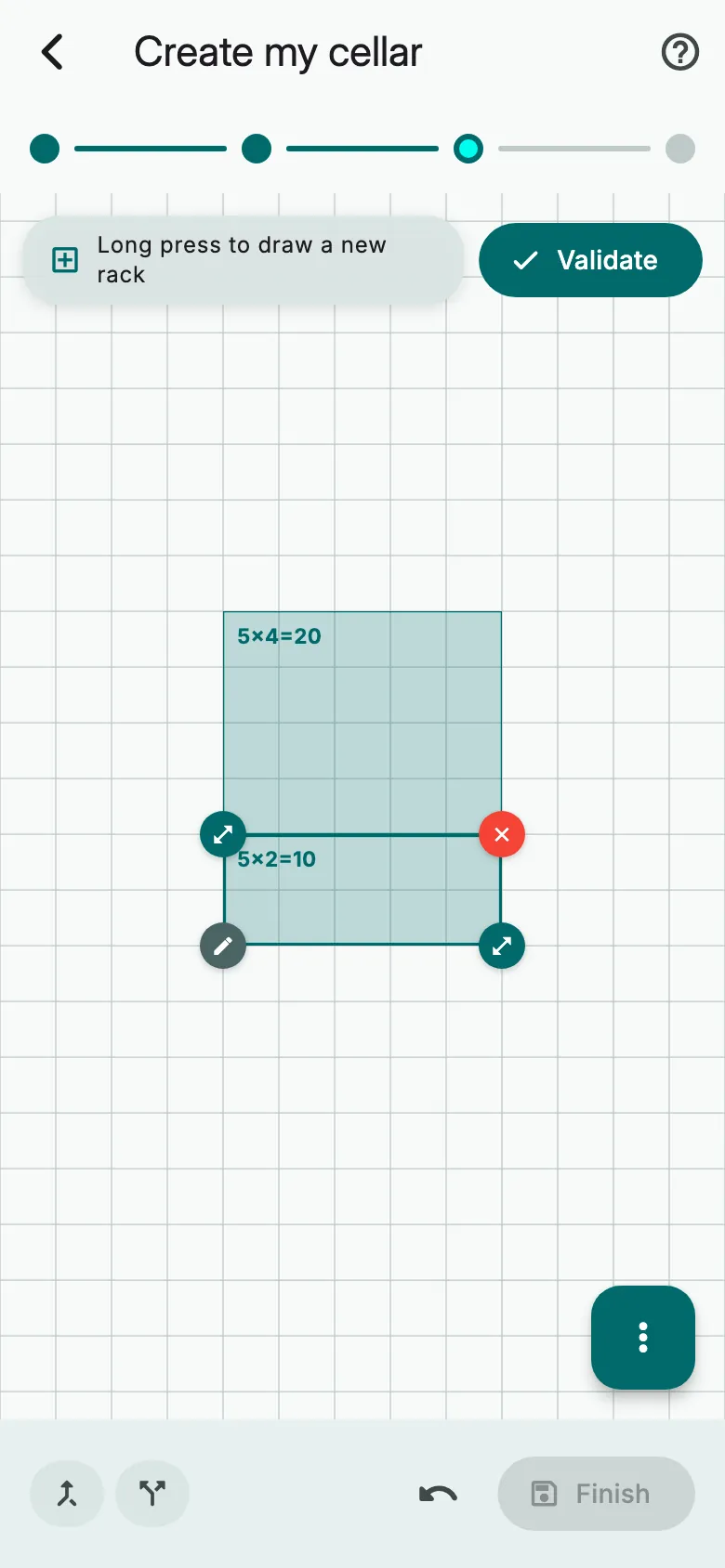
Tap a zone to select it, then its pencil to set its Bottle arrangement and Storage style.
Adjust a zone
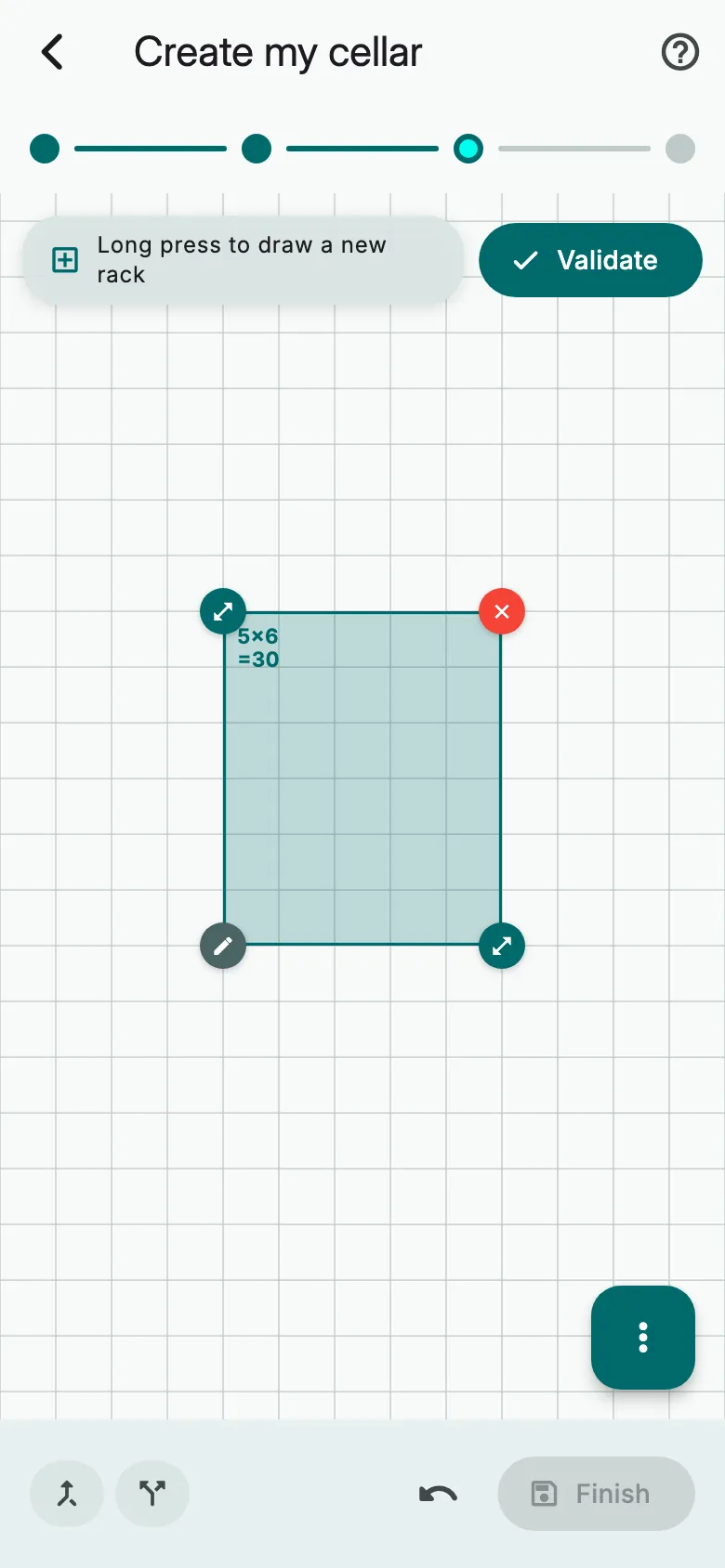
Drag a corner handle to make the zone bigger or smaller.
To move it, drag it from its centre.
Tap the red cross to erase the zone.
Merge or split zones
To join two zones, tap Merge at the bottom of the screen.
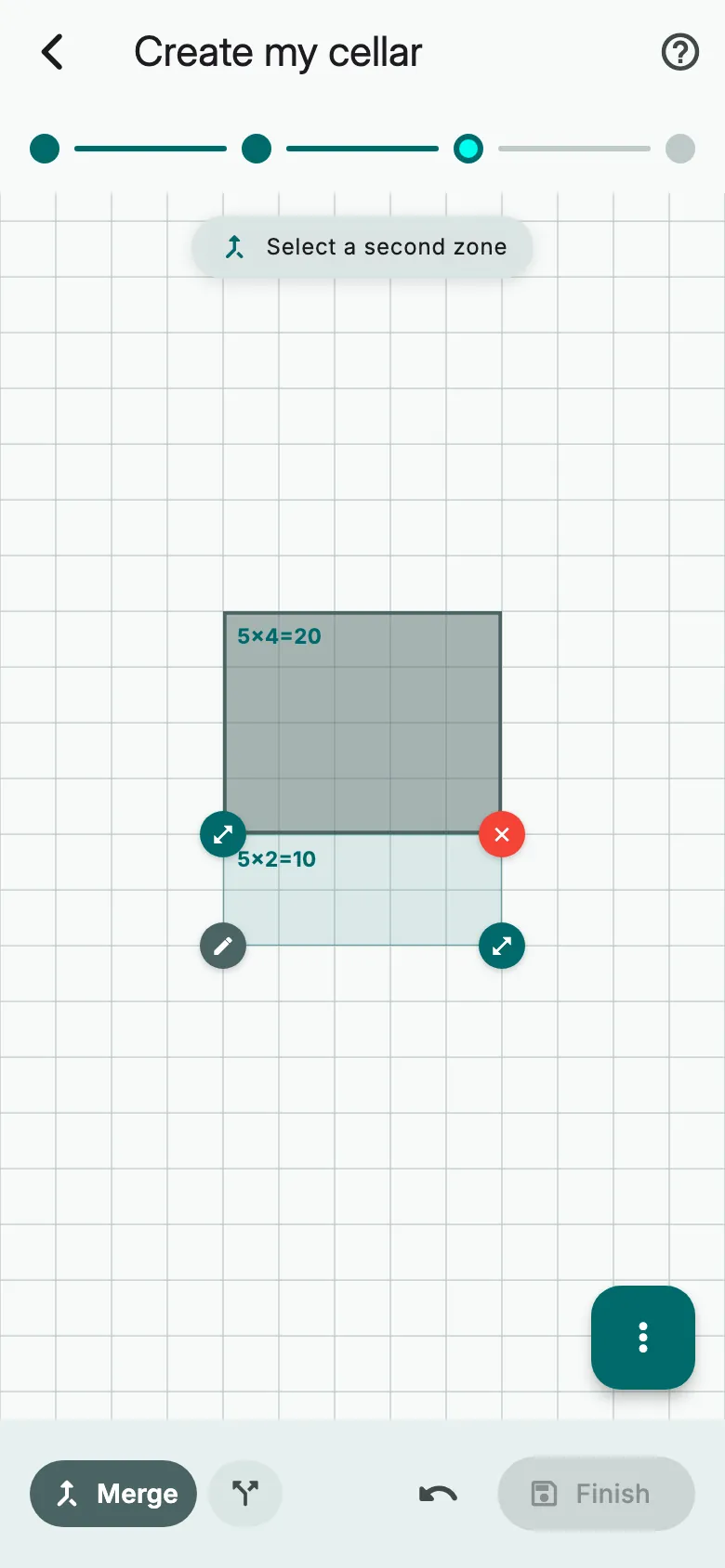
Then tap both zones, one after the other. Together, they must form a rectangle.
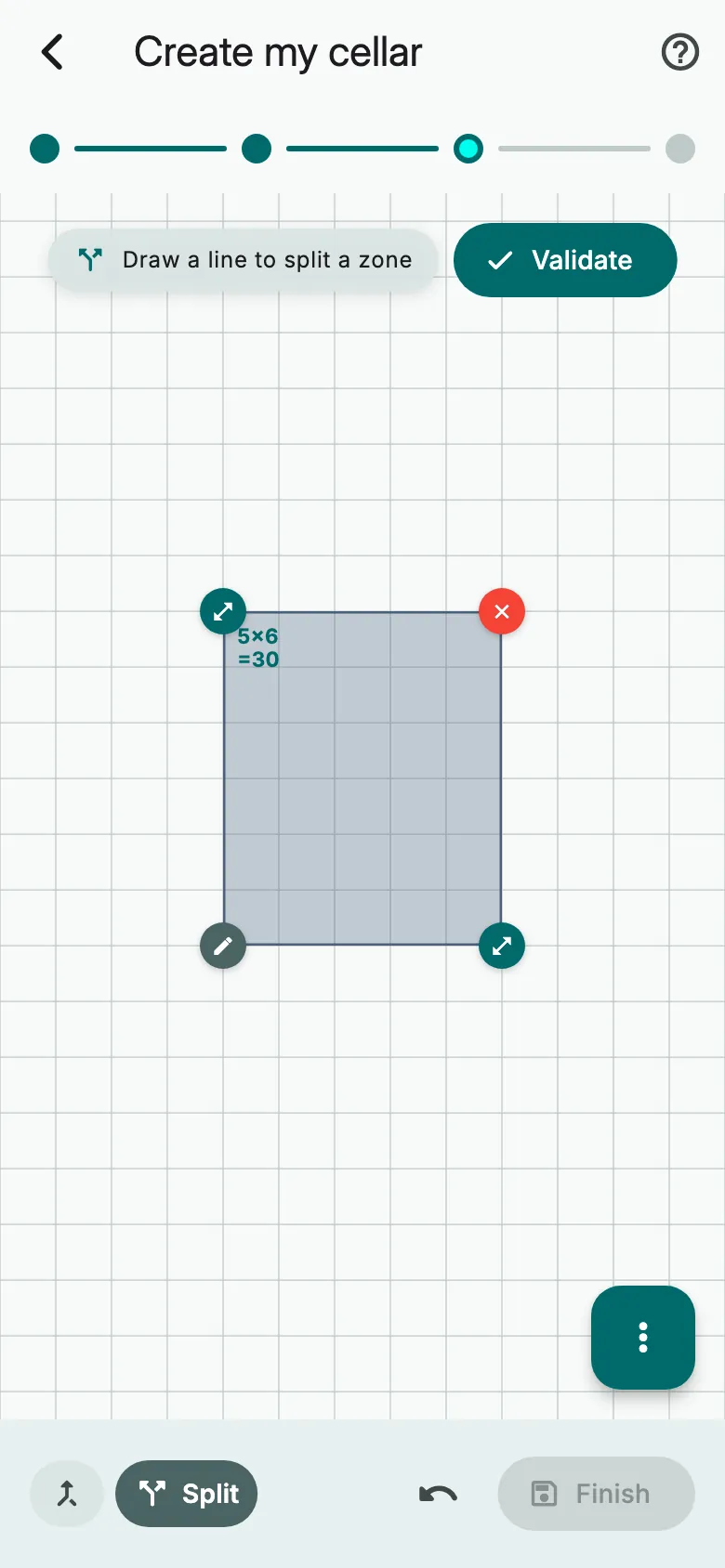
To cut a zone in two, tap Split, then draw the cut from one edge of the zone to the other.
The rack menu
Tap the three-dot button at the bottom right to open the rack menu.
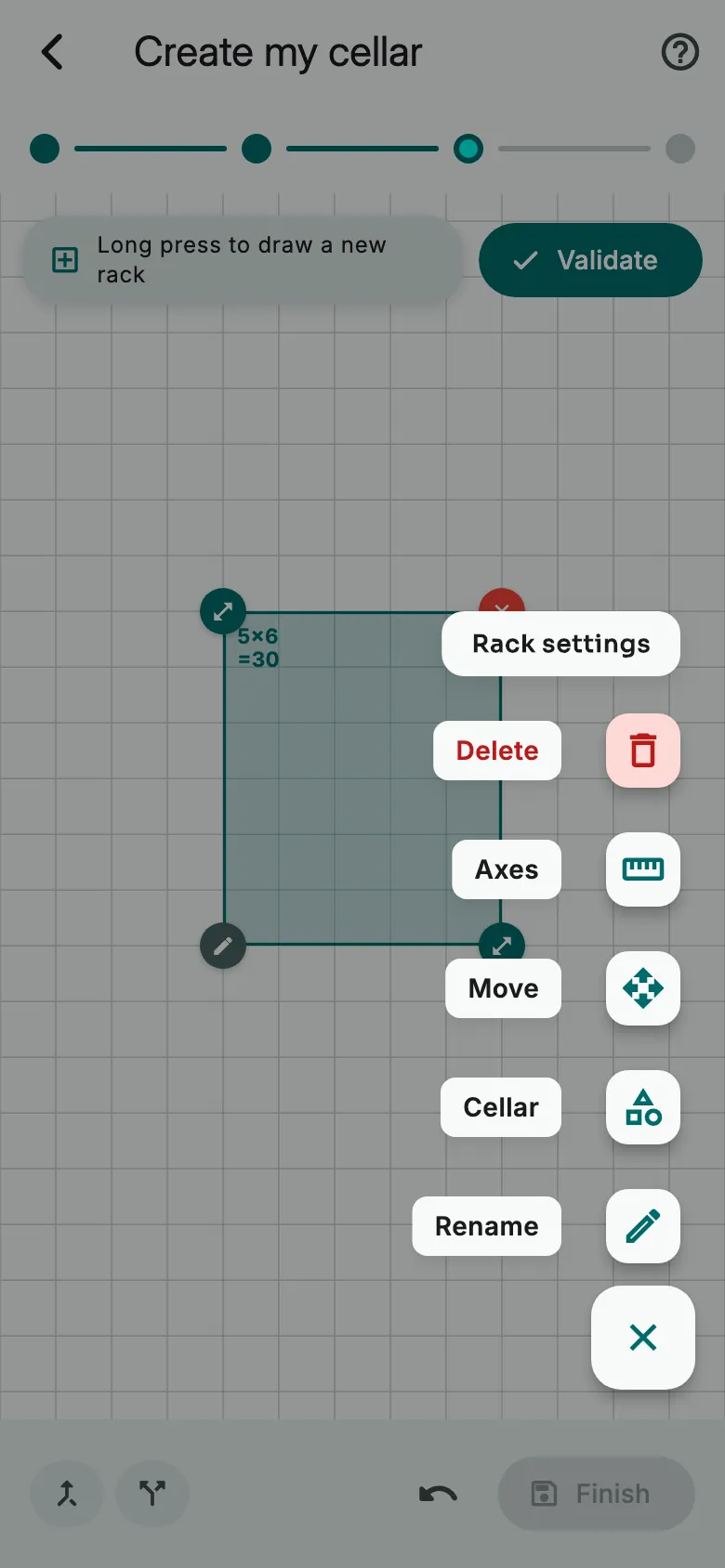
Tap its type to change it: Cellar, Crate, Cardboard or Wine cooler. Rename gives it a name.
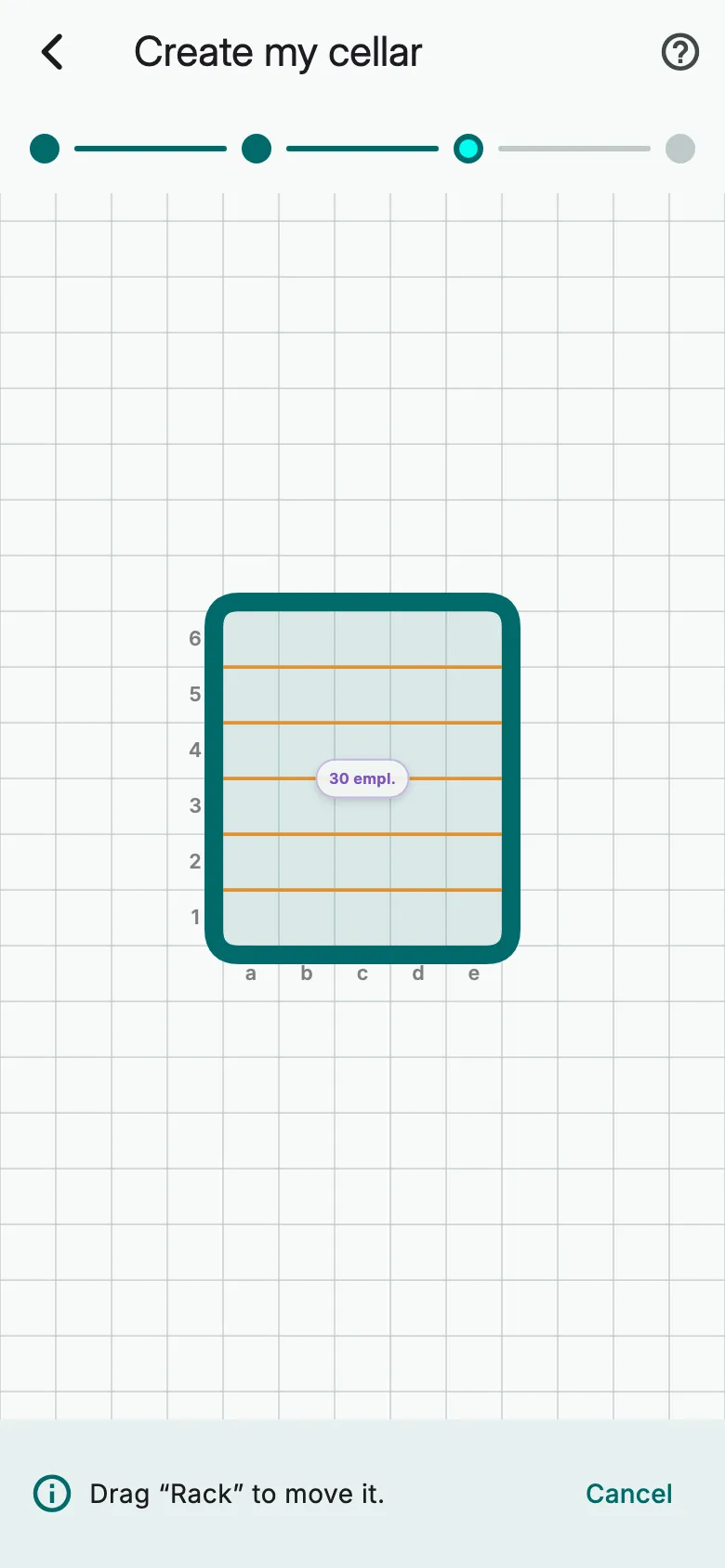
Tap Move, then drag the rack to its new place.
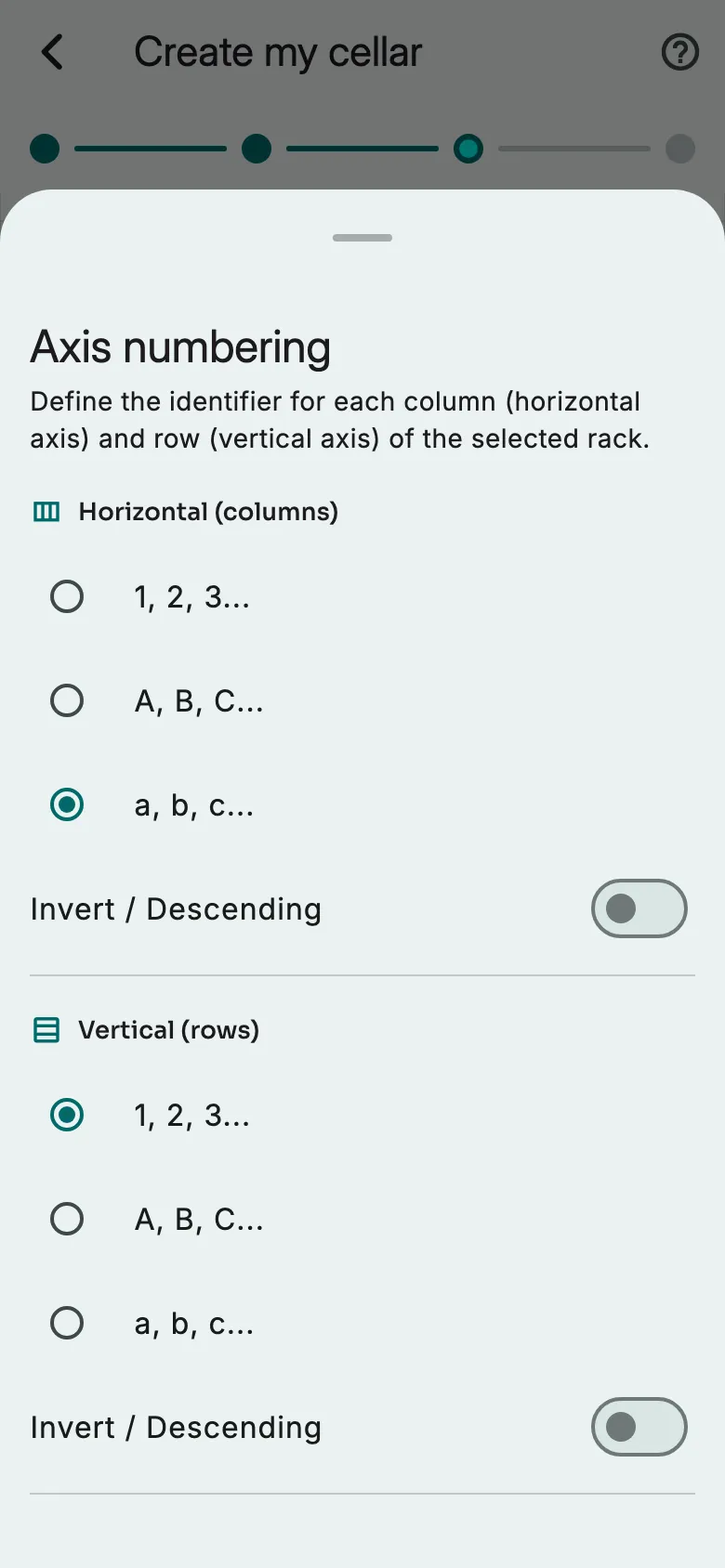
Axes sets how columns and rows are numbered: digits or letters, in either direction.
Delete removes the rack. Its bottles become loose when you save.
Go back to a rack
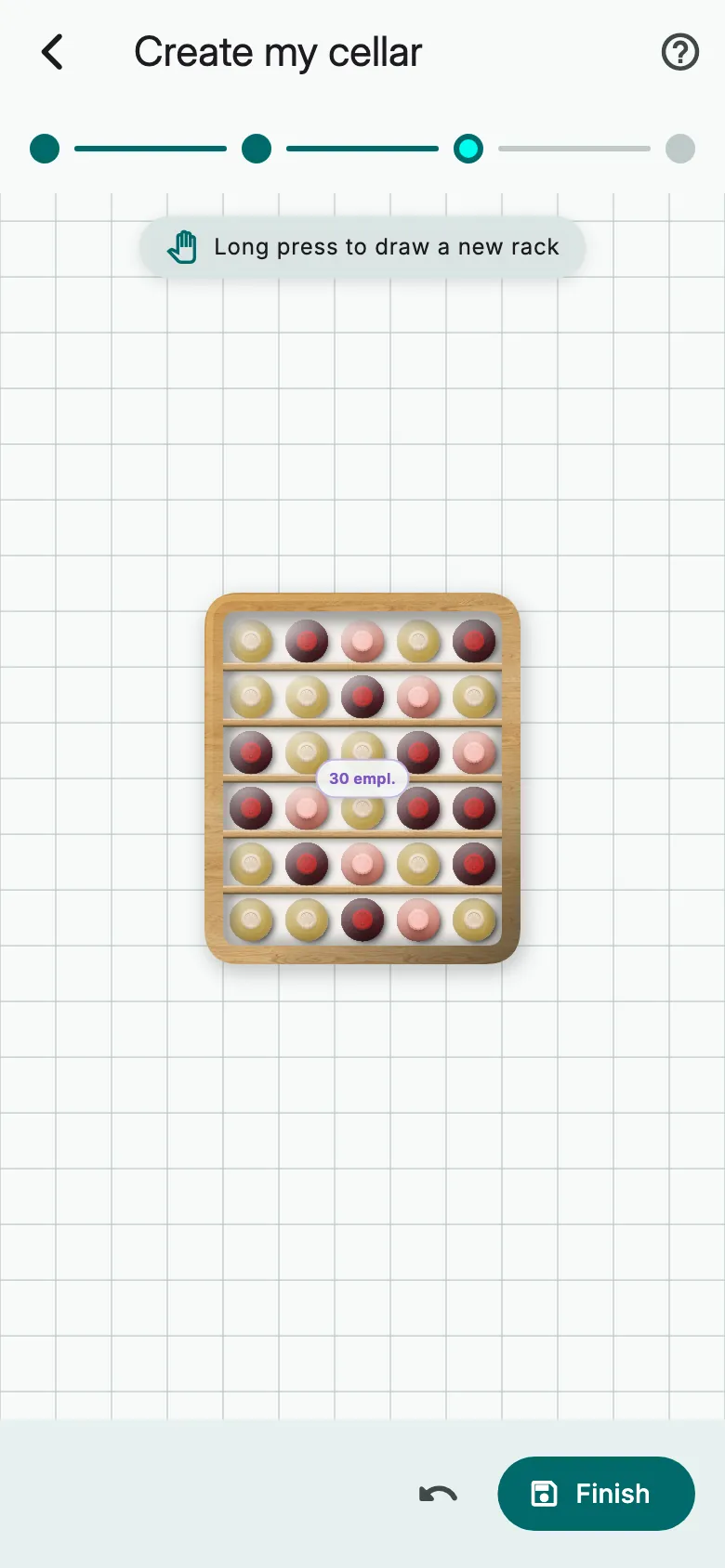
To change a rack you have already validated, double-tap it or long-press it.
Made a mistake? The arrow undoes the last action. When everything is ready, tap Finish.
More guides
Ready to open the right bottle at the right time?
Download Vinara for free and set up your cellar in minutes.

Scan the code with your phone to install the app.