Guide
Edit a cellar
Its name, its icon, its racks, even switching from a list to a graphical cellar: everything can be changed later, from the cellar itself.
Open the cellar settings
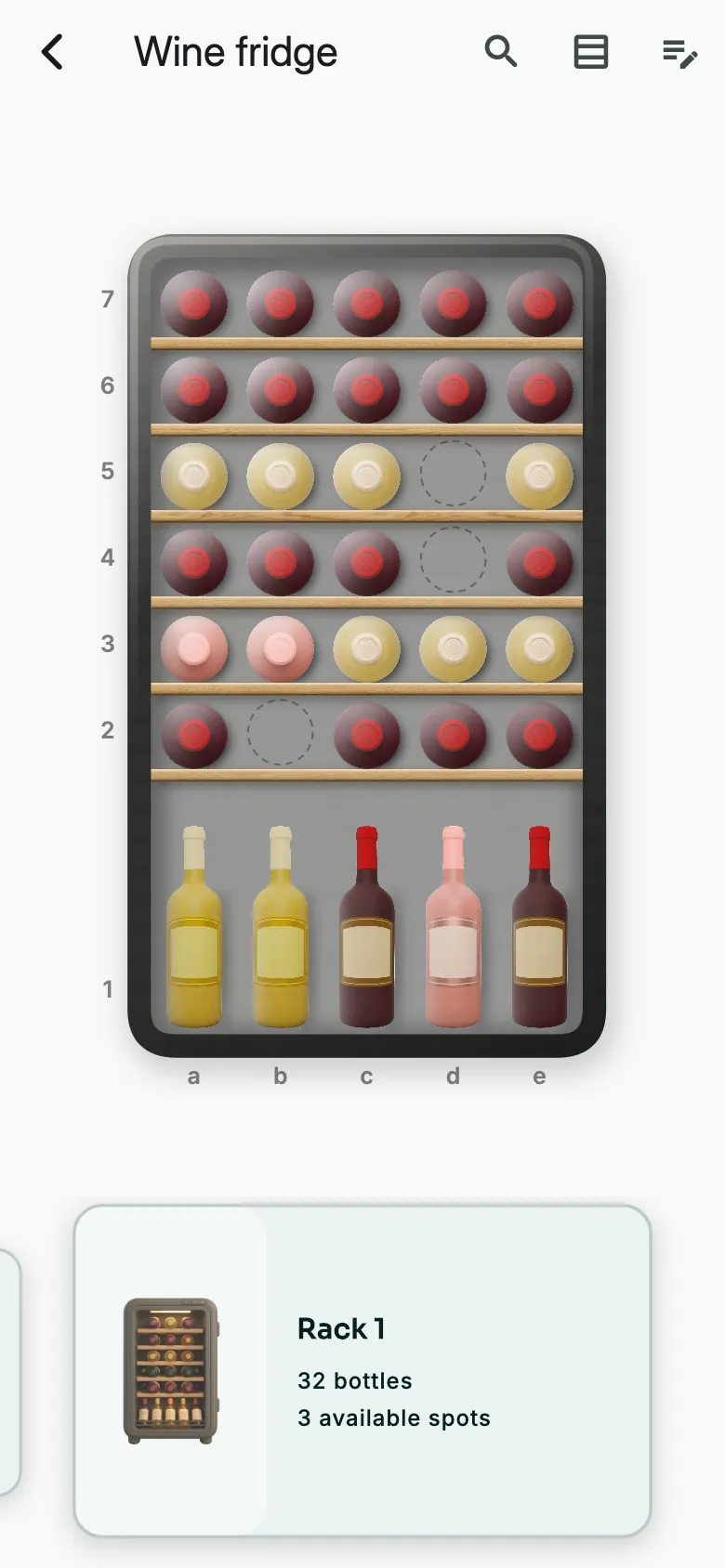
In the cellar, tap the pencil icon at the top right.
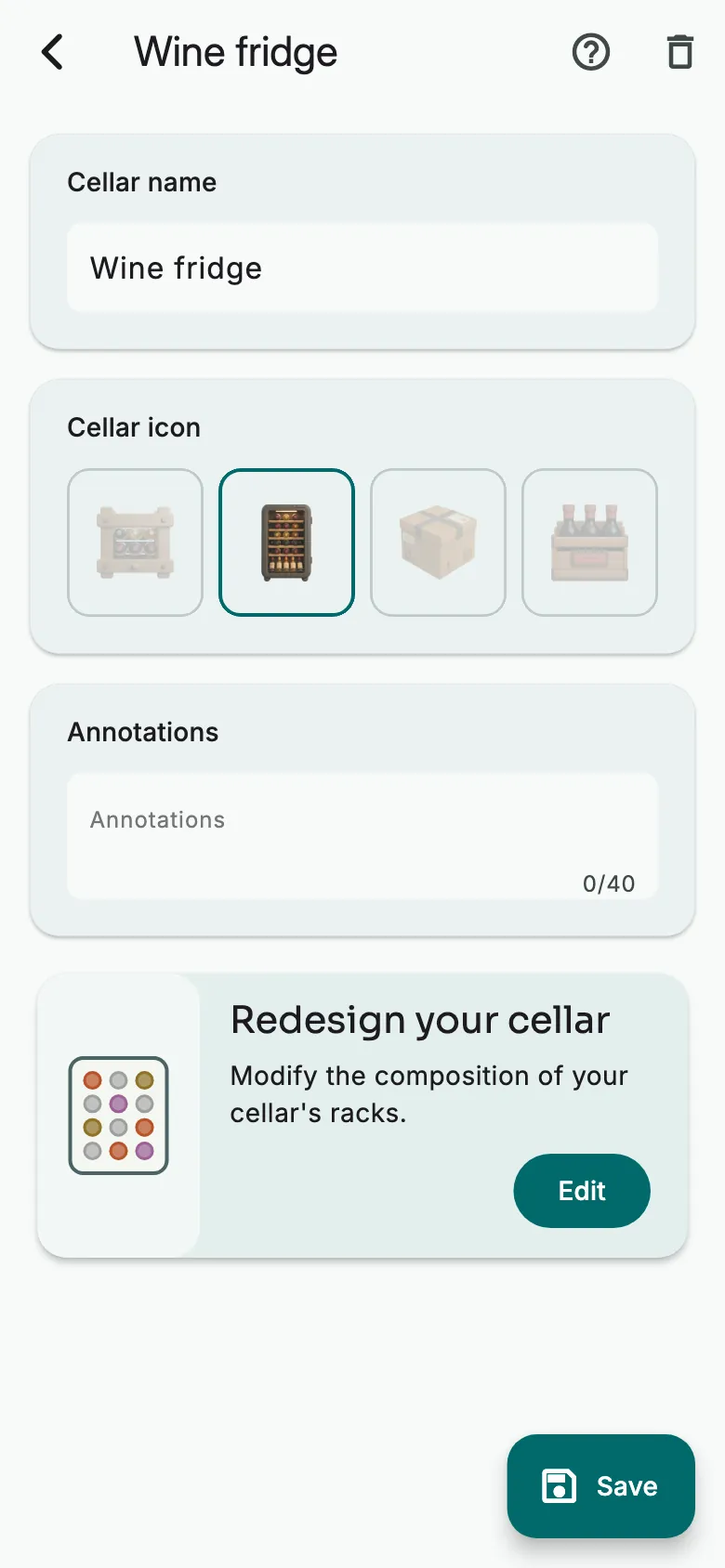
Change its name, its icon or its Annotations, then tap Save.
Redesign its racks
Under Redesign your cellar, tap Edit: the editor opens on your racks.
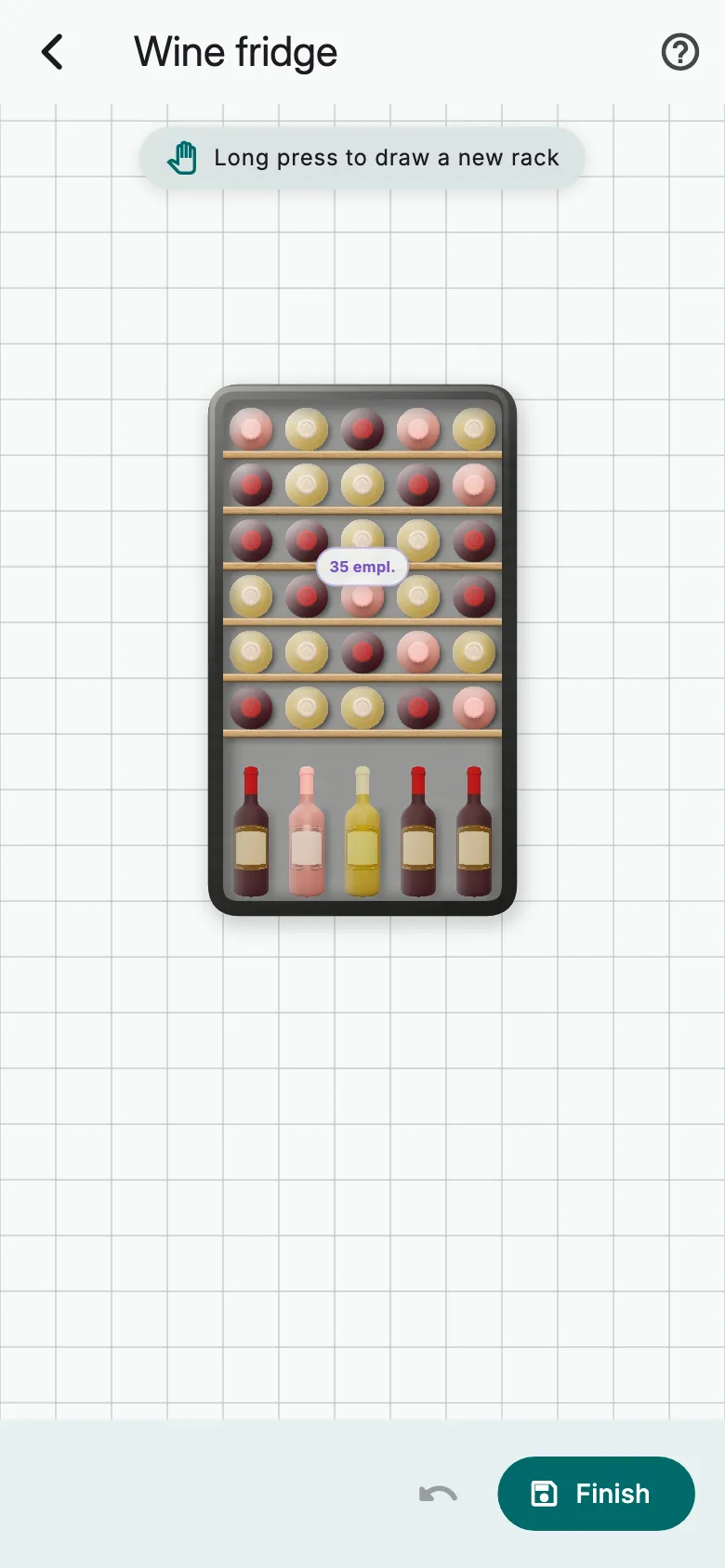
Add, change or delete racks, then tap Finish. A bottle whose slot disappears becomes loose: Vinara warns you first.
Make a non-graphical cellar graphical
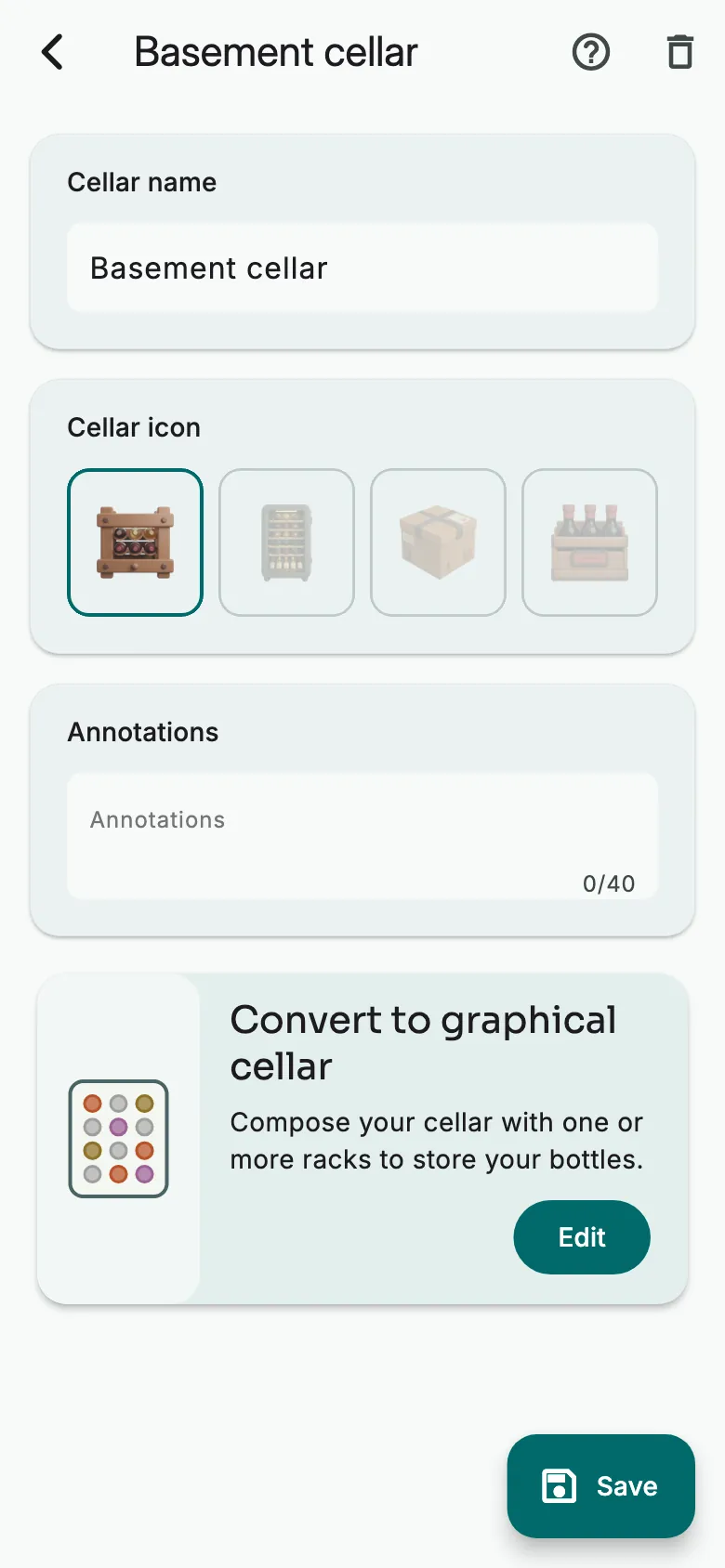
In a non-graphical cellar, tap Edit under Convert to organized cellar.
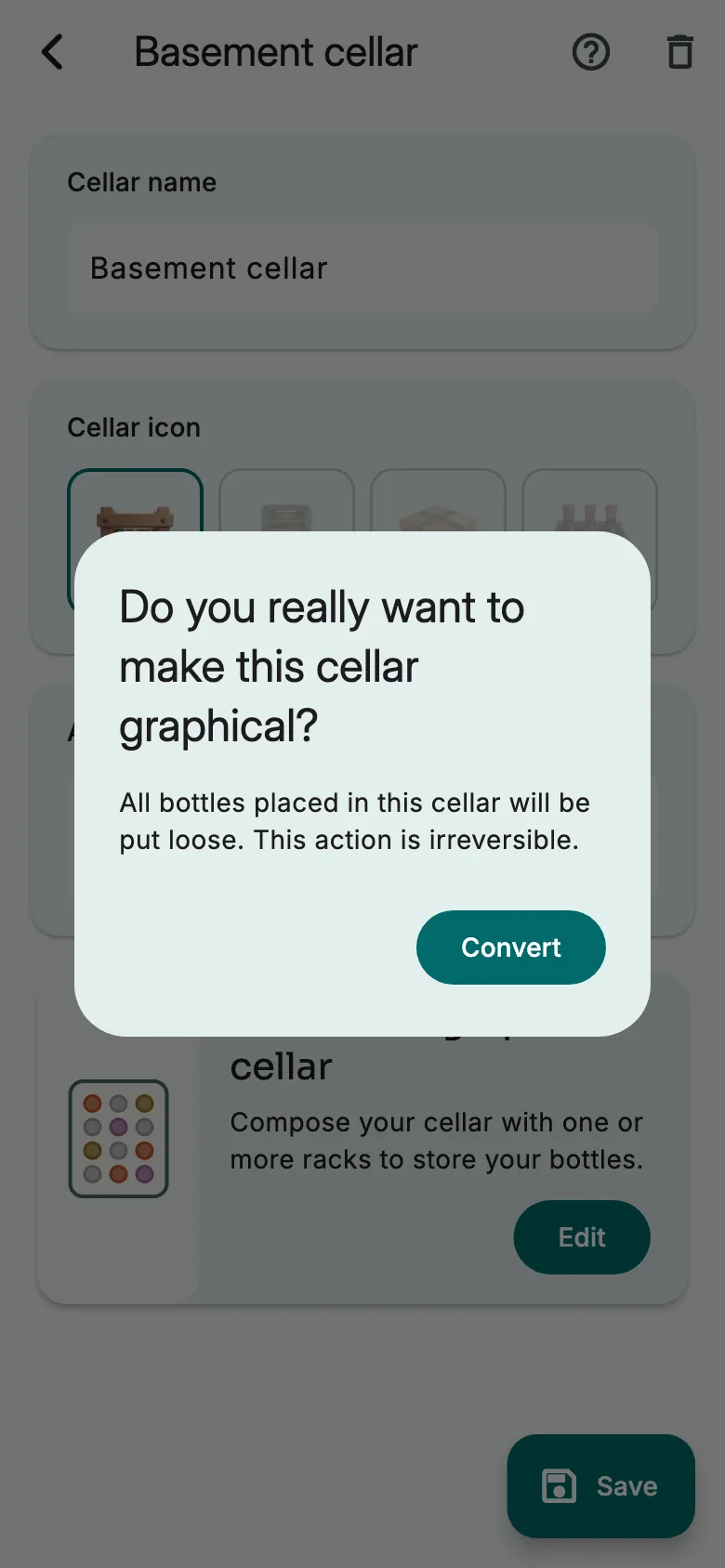
Tap Convert: its bottles become loose, and the editor opens so you can draw your racks.
Delete the cellar
Tap the bin at the top right, then confirm. The cellar's bottles become loose.
The style of your cellars
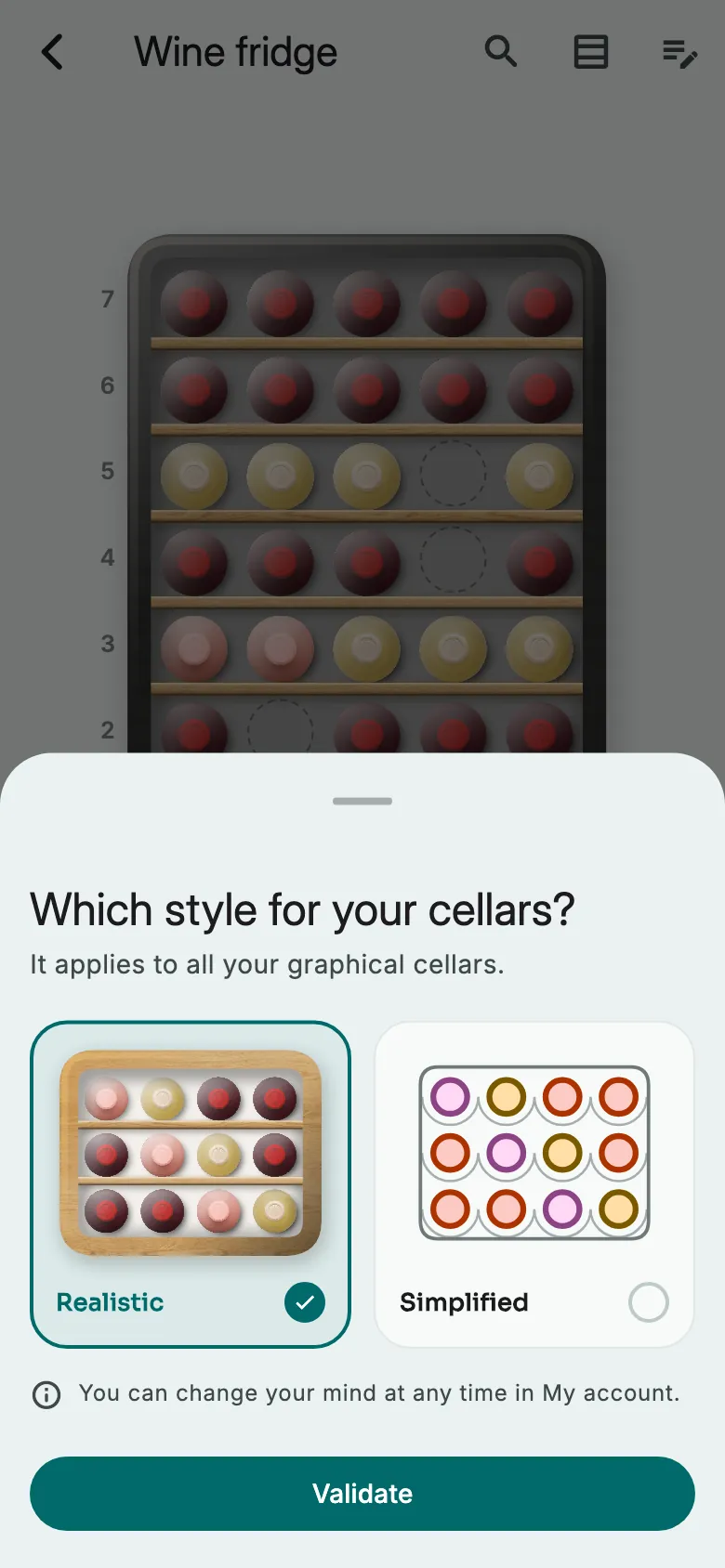
Choose the style of all your graphical cellars: Realistic or Simplified. To change it later, open My account and turn Simplified cellar style on or off.
More guides
Ready to open the right bottle at the right time?
Download Vinara for free and set up your cellar in minutes.

Scan the code with your phone to install the app.